How to Transfer a YouTube Channel to Another Email or Account (2026)
You cannot change the email address a YouTube channel is attached to the way you change a password. To move a channel to another email or Google account, you transfer its ownership through a Brand Account. It sounds technical, but it takes about ten minutes of work plus a 7-day wait. This guide covers every step, whether you are moving your own channel, selling one or buying one.
Can you transfer a YouTube channel to another email?
Yes. The channel keeps its name, videos, subscribers, comments and watch history. Only the Google account that controls it changes. The one thing that does not move is the AdSense account: the new owner links their own AdSense account after the transfer.
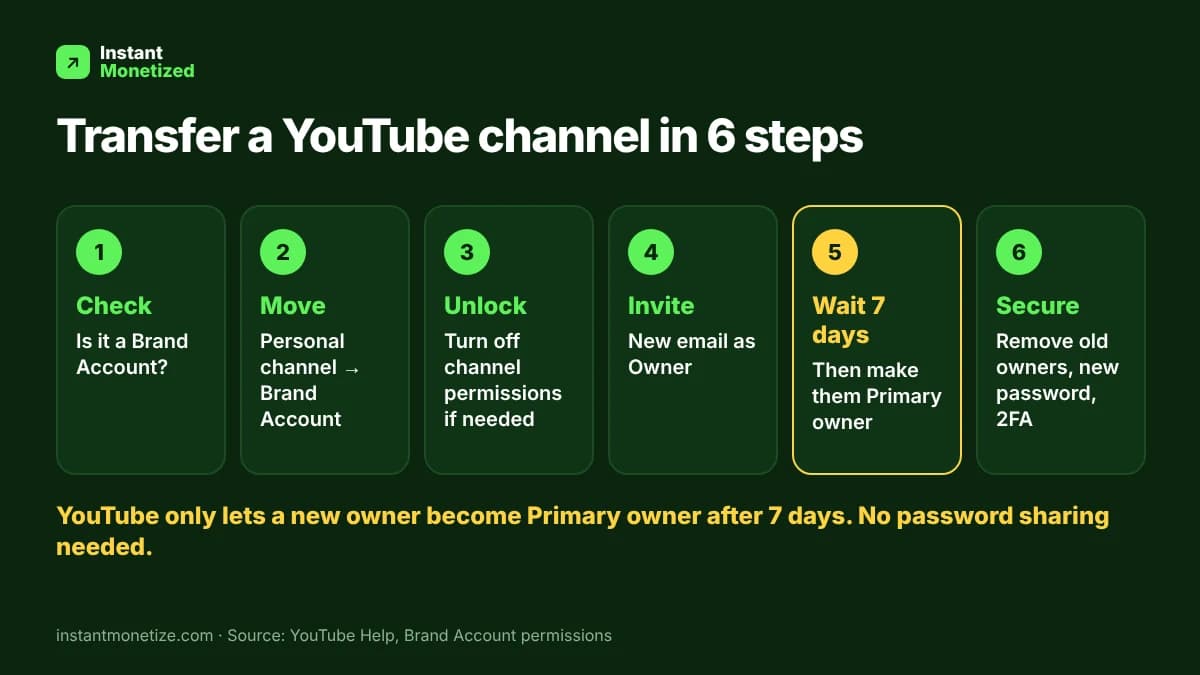
Step 1: Check if the channel is on a Brand Account
Ownership can only be transferred when the channel is connected to a Brand Account. Go to your Google Account and look for Brand Accounts. If the channel is listed there, skip to step 3.
Step 2: Move a personal channel to a Brand Account
- Sign in to YouTube with the account that owns the channel.
- Open your YouTube account settings and go to Advanced settings.
- Choose to move the channel to a Brand Account, and create a new Brand Account if you do not have one.
- Confirm the move. The channel keeps its videos and subscribers.
Step 3: Turn off channel permissions if they block you
Newer channels often use "channel permissions" in YouTube Studio. Ownership is still changed through the Brand Account. If you cannot add people as owners, open YouTube Studio, go to Settings and then Permissions, and opt out of channel permissions for now. You can opt back in after the transfer.
Step 4: Invite the new email as an Owner
- Go to the Brand Accounts section of your Google Account and select the channel's Brand Account.
- Click Manage permissions, then Invite new users.
- Enter the new email address and choose the Owner role.
- Click Invite. The new owner accepts the invitation from their inbox.
Step 5: Wait 7 days, then make them Primary owner
Google only lets someone become the primary owner after they have been an owner for at least 7 days. This protects channels from being taken over in a hurry.
- After 7 days, the current primary owner opens Brand Accounts and selects the channel.
- Click Manage permissions and find the new owner's name.
- Click the arrow next to their name and choose Primary owner, then Transfer.
- The new primary owner can now remove the old owner.
Step 6: Secure the channel after the transfer
- Remove any old owners and managers you do not know.
- Turn on 2-Step Verification on the new owner's Google account.
- Link your own AdSense account in YouTube Studio under Earn.
- Check the channel email, recovery details and connected apps.
Common problems and fixes
- "You must be an owner for 7 days": the new owner joined less than a week ago. Wait and try again.
- No Manage permissions button: the channel is not on a Brand Account yet. Do step 2 first.
- Cannot add an owner: opt out of channel permissions in YouTube Studio (step 3).
- Managers cannot become primary owner directly: invite them as an Owner instead.
Buying or selling a channel? Do this too
- Never send money for the full price before the new owner has been added.
- Use the 7-day wait to check the channel's analytics, strikes and monetization status.
- Keep screenshots of every step in case of a dispute.
FAQ
- Do I lose subscribers or views when I transfer a channel? No. Everything stays with the channel.
- Does monetization stay on? Yes. The new owner links their own AdSense account to keep getting paid.
- Can I transfer a channel to a Gmail address? Yes, any Google account can be invited as an owner.
- How long does it take? About 10 minutes of setup plus the 7-day wait.